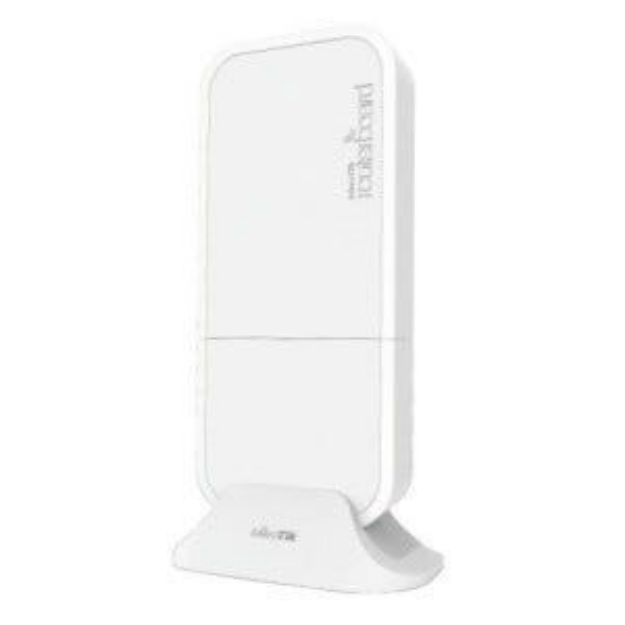
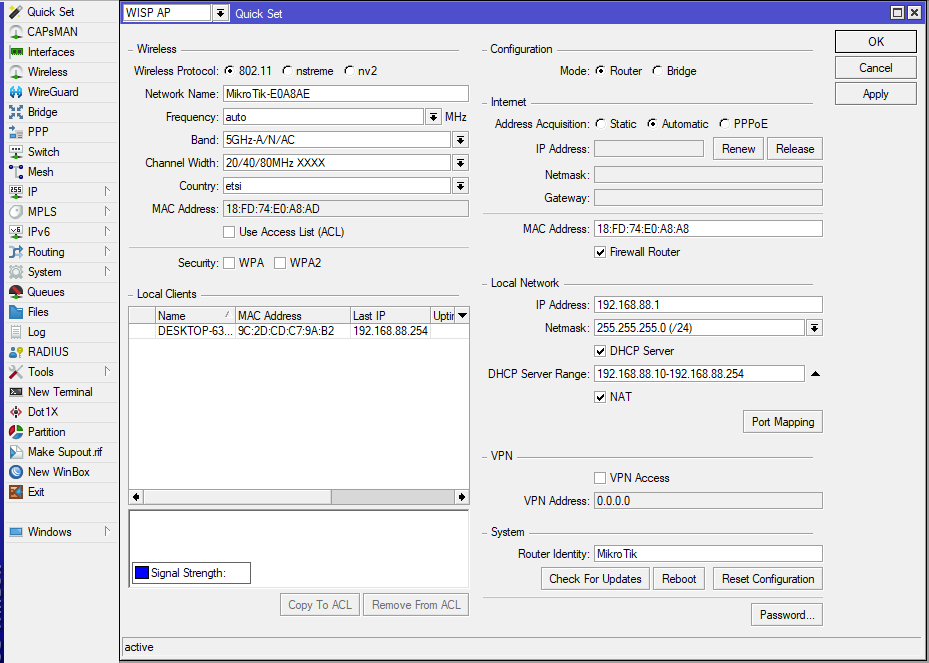
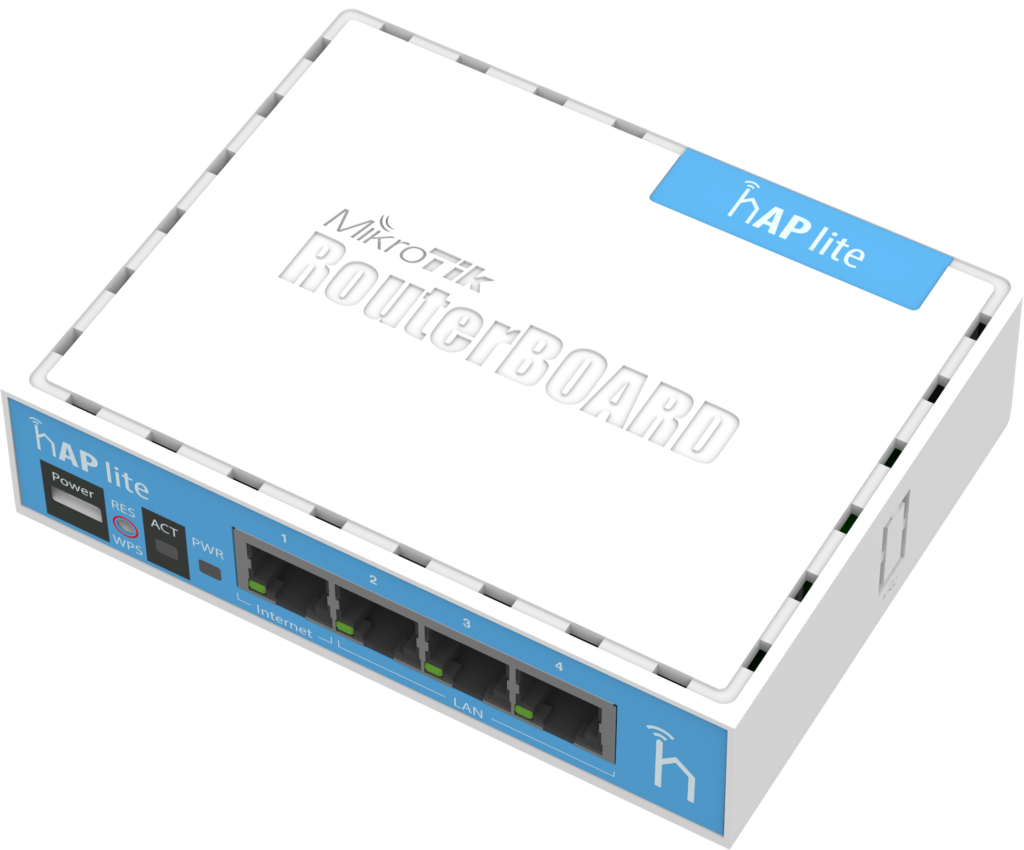
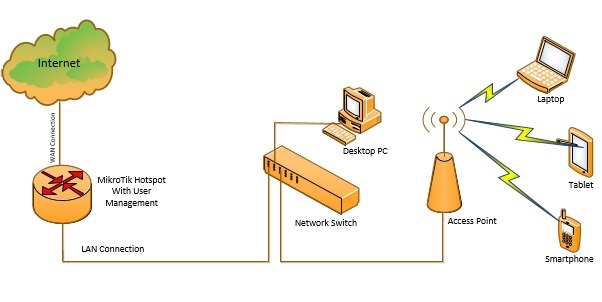
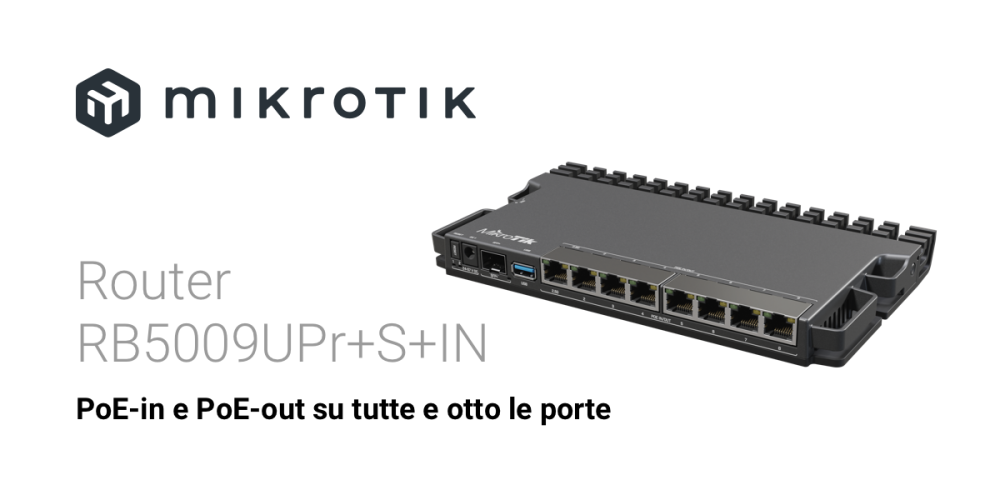
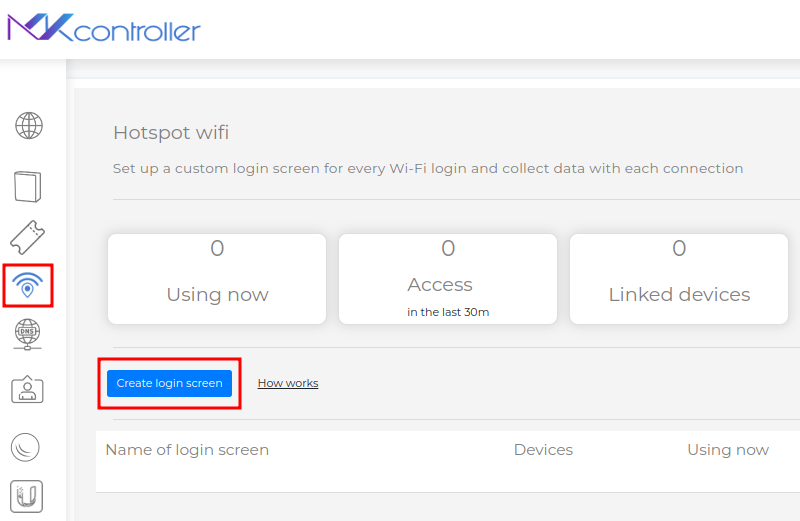
## Setup Mikrotik Router As Access Point For High Traffic Areas Many network administrators struggle with the idea of setting up Mikrotik routers as access points (AP) in high-traffic areas. These areas require a robust and reliable solution to ensure seamless connectivity and prevent network congestion. In this article, we will walk you through the process of setting up a Mikrotik router as an access point for high-traffic areas, including the necessary configuration and best practices. ### Benefits of Using Mikrotik Routers as Access Points Mikrotik routers can be used as access points in high-traffic areas for several reasons. One of the main advantages is their ability to provide high-speed Wi-Fi connectivity to a large number of devices simultaneously. They also offer advanced features such as Quality of Service (QoS), Load Balancing, and Band Steering, which can help optimize network performance and improve the overall user experience. ### Prerequisites Before we begin, ensure you have the following: * A Mikrotik router (supports RouterOS v7 or later) * Access to a computer with a web browser * Basic knowledge of Mikrotik configuration * A connection to a wired network or a modem ### Step-by-Step Setup Guide #### Section 1: Basic Configuration 1. First, log in to your Mikrotik router using WinBox or SSH. 2. Reset the configuration to factory settings by clicking on the "Reset Configuration" button. 3. Rename the device to a descriptive name, for example, "AP-01." #### Section 2: Configure Wireless Settings 4. Go to the Wireless section and select "CAPsMAN" as the wireless protocol. 5. Set the wireless frequency to 2.4 GHz or 5 GHz, depending on the area you want to cover. 6. Configure the SSID, channel width, and channel number according to your network requirements. #### Section 3: Configure Bridge and IP Address Assignment 7. Create a new bridge by clicking on the "+" button and selecting "Bridge." 8. Set the bridge's name and IP address to a unique address within your network. 9. Configure the IP address assignment for the built-in interfaces by selecting the "IP" section and setting the IP address, subnet mask, and gateway. #### Section 4: Configure NAT and Quality of Service (QoS) 10. Go to the "Firewall" section and create a new NAT rule to assign a public IP address to the AP. 11. Set the QoS settings according to your network requirements to ensure that critical applications receive sufficient bandwidth. #### Section 5: Final Checks 12. Save your changes and reboot the device. 13. Verify that the AP is working correctly by connecting to it with a device and checking the internet connection. ### Additional Tips and Best Practices * Ensure that the Mikrotik router is situated in a location with good RF coverage to minimize signal loss and dead spots. * Consider implementing QoS settings to prioritize critical applications and ensure smooth connectivity. * Use the Mikrotik router's built-in reporting and monitoring features to track network performance and troubleshoot potential issues. ### Conclusion In this article, we have walked you through the steps to set up a Mikrotik router as an access point for high-traffic areas. With this setup, you can provide seamless and reliable Wi-Fi connectivity to a large number of devices simultaneously, without the need for additional hardware. Remember to consider the specific requirements of your network and adjust the configuration accordingly.
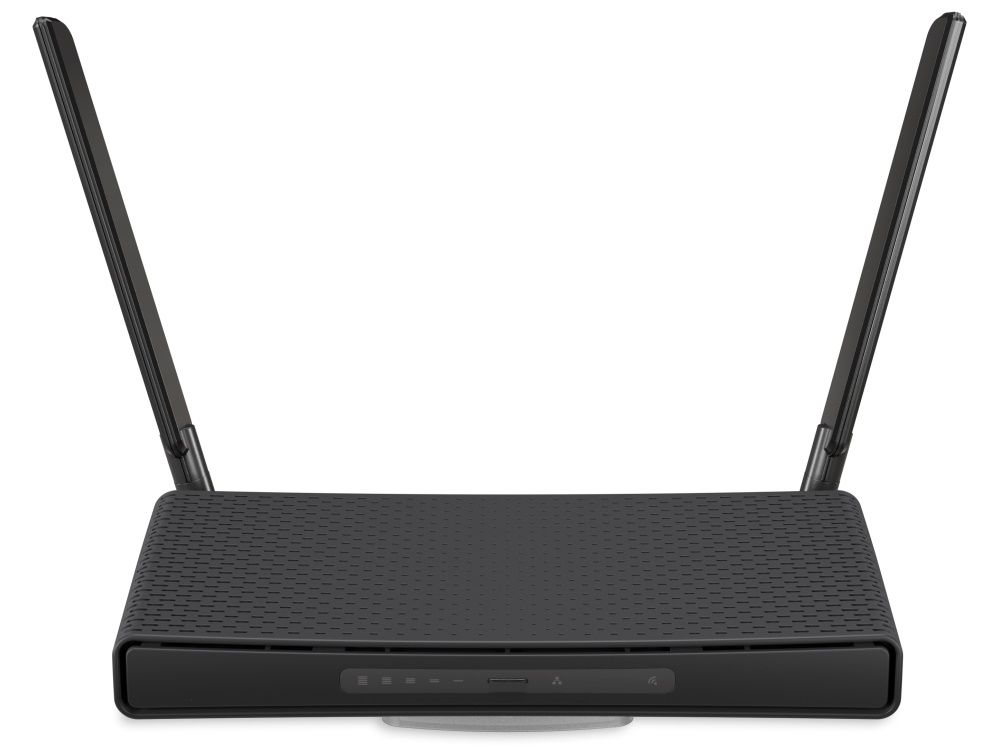
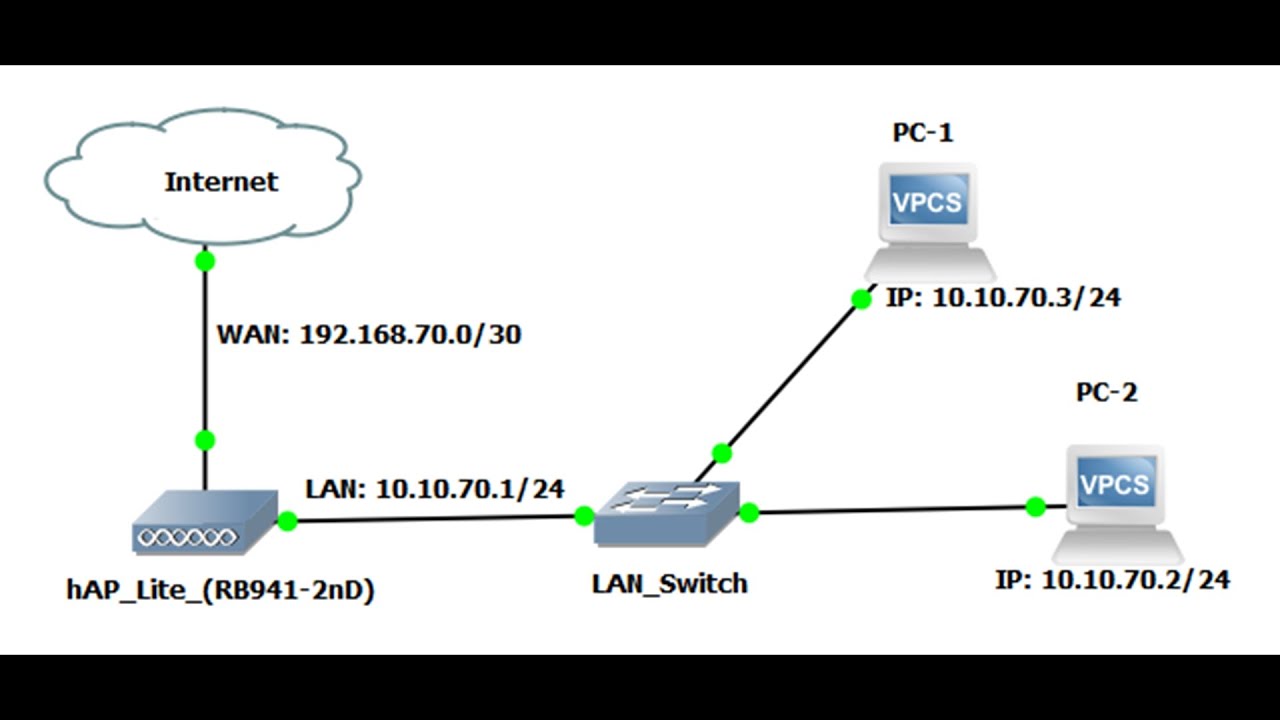
Such details provide a deeper understanding and appreciation for Setup Mikrotik Router As Access Point For High Traffic Areas.